

impact.com's stand-down policy is a best practice that prevents certain partners—particularly those using browser extensions, toolbars, or in-cart solutions—from interfering with the shopping experience if another click has already been recorded from another partner. Once a shopper has engaged with a tracking link (e.g., from a creator, content publisher, cashback program, or coupon site), the afsrc=1 parameter is automatically appended to the landing page URL for all partner-driven traffic. Any competing extension must withdraw and not attempt to override the original click by triggering pop-ups, activating new tracking links, or altering the customer's path to purchase.
The consumer clicks on a link from a partner site, which brings them to a brand's landing page.
The
afsrc=1parameter is automatically appended to the landing page URL.The competing partner, e.g., a browser extension, checks the link that redirected the consumer and recognizes it as an impact.com tracking link.
The extension is then required to abide by the stand-down policy, and no extension pop-up should be made visible for that consumer.
You can ensure the stand-down policy is enabled by viewing your template terms' General Terms section.
From the left navigation bar, select
![[Engage] v2](https://paligoapp-cdn-eu1.s3.eu-west-1.amazonaws.com/impact/attachments/f01cdffa431a4d75ff09c130b66974d4-aa671735ec2b65af79961eaf59ab60af.svg) [Engage] → Contracts → Template Terms.
[Engage] → Contracts → Template Terms.Hover over the relevant template terms, then select
![[More] vNext](https://paligoapp-cdn-eu1.s3.eu-west-1.amazonaws.com/impact/attachments/f01cdffa431a4d75ff09c130b66974d4-73f43076a692f2dcc8960037fabdca9c.svg) [More] → View Terms.
[More] → View Terms.Scroll down to the General Terms section, then look for Stand Down Policy.
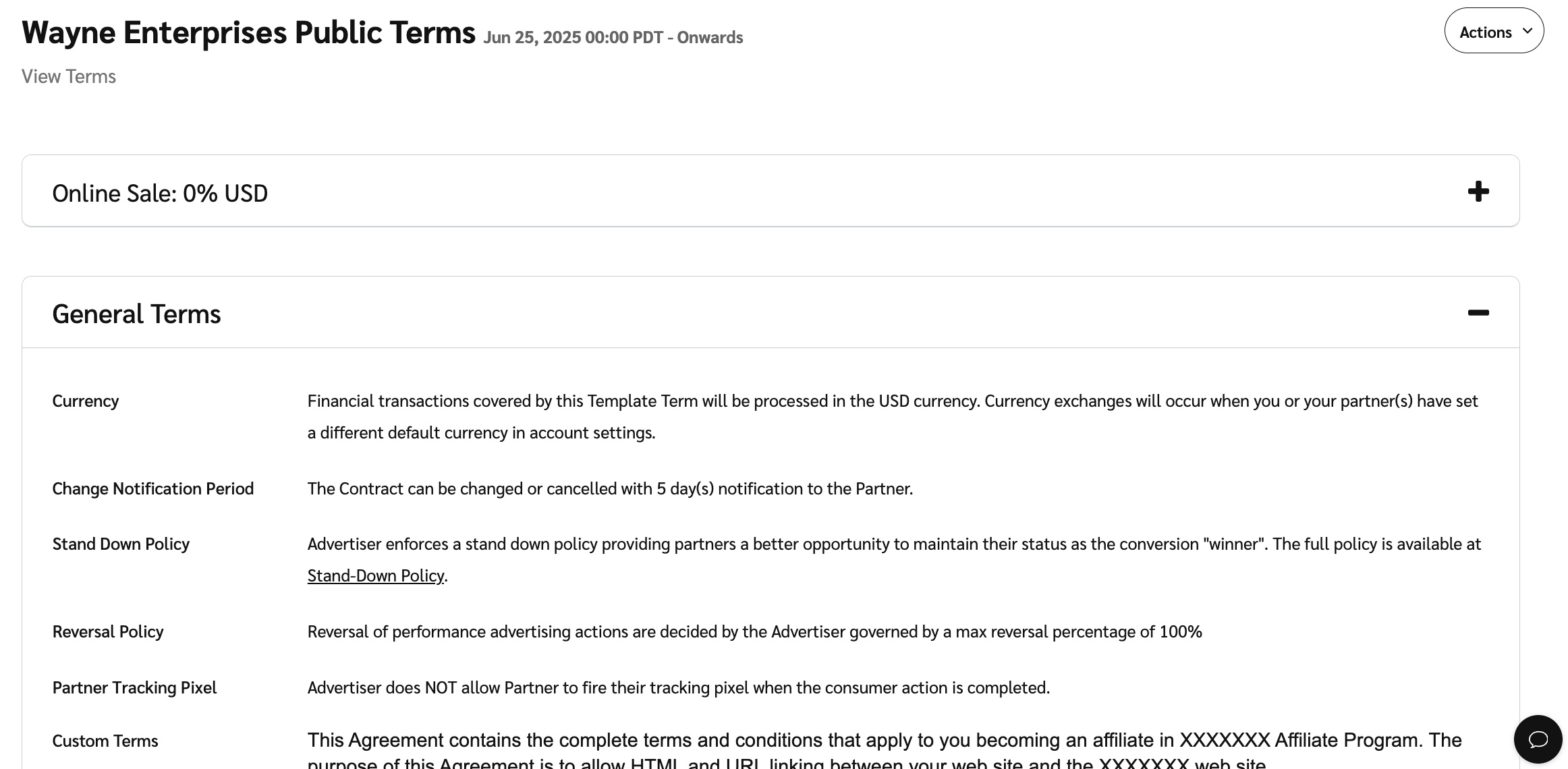
Warning: Your program’s stand-down policy is enabled by default, and we recommend you keep it enabled to establish good partnerships. Explicitly stating that you adhere to a stand-down policy will give partners a better opportunity to maintain their status as a conversion winner.
From the top navigation bar, select
![[User]](https://paligoapp-cdn-eu1.s3.eu-west-1.amazonaws.com/impact/attachments/f01cdffa431a4d75ff09c130b66974d4-ec4c7b9aa5792fe725406b280fb272b1.svg) [User profile] → Settings.
[User profile] → Settings. On the right, under Tracking, select General.
Below the Stand Down Policy section, select
![[Checked box]](https://paligoapp-cdn-eu1.s3.eu-west-1.amazonaws.com/impact/attachments/f01cdffa431a4d75ff09c130b66974d4-aee23966cd91ec2a9f9985361c43ab1a.svg) [Checkbox] Activate stand down policy on all template terms.
[Checkbox] Activate stand down policy on all template terms.Select Save.