

The Campaign Performance by Post report provides detailed tracking data for individual social posts linked to your campaigns. It includes KPIs such as likes and engagements.
From the left navigation bar, select Reports
![[Drop-down menu]](https://paligoapp-cdn-eu1.s3.eu-west-1.amazonaws.com/impact/attachments/f01cdffa431a4d75ff09c130b66974d4-d6b35853a9aa1f1fe6bd66da29bd09fa.svg) [Drop-down menu] → More Reports.
[Drop-down menu] → More Reports.From the Category filter next to the search bar, select Performance.
Select Campaign Performance by Post.
Below Campaign Performance by Post, you can filter for the data you want to view. Select
![[Search]](https://paligoapp-cdn-eu1.s3.eu-west-1.amazonaws.com/impact/attachments/f01cdffa431a4d75ff09c130b66974d4-d9034475259004cc4d724957e37096f4.svg) [Search] when you have the filters in place that you want.
[Search] when you have the filters in place that you want.You can use the icons at the top-right of the page to
![[Schedule report] vNext](https://paligoapp-cdn-eu1.s3.eu-west-1.amazonaws.com/impact/attachments/f01cdffa431a4d75ff09c130b66974d4-518305996b9b70e56da26aee92cbe615.svg) [Schedule], or
[Schedule], or ![[Download report] vNext](https://paligoapp-cdn-eu1.s3.eu-west-1.amazonaws.com/impact/attachments/f01cdffa431a4d75ff09c130b66974d4-d86efd15651b5054fddb008ce5d1a1d6.svg) [Download] the report (in PDF, Excel, or CSV format).
[Download] the report (in PDF, Excel, or CSV format).View the Filter reference below for more information.
Customize the report view and choose between viewing the trend graph or data table.
The trend graph enables you to select a metric from a core group that drives the highest value. This view provides the selected metric’s daily trends over a specific date range.
Select the
[Drop-down menu] in the upper-right corner, then, choose a specific metric.Alternate between then
![[Line graph] v2](https://paligoapp-cdn-eu1.s3.eu-west-1.amazonaws.com/impact/attachments/f01cdffa431a4d75ff09c130b66974d4-f89d800ed6253b756d4847bbb00355ee.svg) [Trend Graph] and
[Trend Graph] and ![[Bar graph] v2](https://paligoapp-cdn-eu1.s3.eu-west-1.amazonaws.com/impact/attachments/f01cdffa431a4d75ff09c130b66974d4-a779cc55f17c2c6d793aba920b09240c.svg) [Bar Graph] views by selecting the view icon.
[Bar Graph] views by selecting the view icon.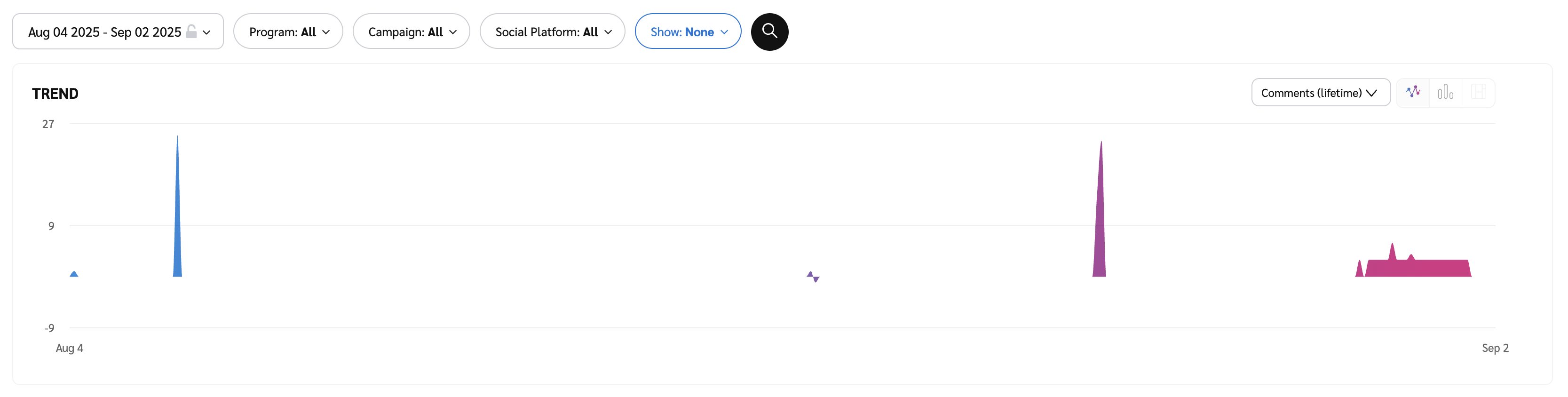
The data tables display key metrics for each social platform (e.g., Instagram) in a column view, offering comparable numbers over the selected date range.
Refer to the Report data column reference below for more information on the columns found in the data table.
Add or remove any of the default columns from the report table using the
![[Column]](https://paligoapp-cdn-eu1.s3.eu-west-1.amazonaws.com/impact/attachments/f01cdffa431a4d75ff09c130b66974d4-63cbd5b88168715b031f0dd433962072.svg) [Columns] icon above the table at the top-right.
[Columns] icon above the table at the top-right.
Column | Description |
|---|---|
Campaign | The campaign for which this post was made. |
Post URL | The URL at which the post can be found. If you select the post, it will open in a new tab. |
Create Date | The date on which the post was created. |
Task Content Type | The type of content creation task assigned. |
Comments (lifetime) | The number of comments the post received. |
Engagements (lifetime) | The number of audience actions taken after seeing posted content. Actions can include reacting to the content, clicking a link, sharing the content, and more. |
Impressions (lifetime) | The number of impressions a post made. |
Likes (lifetime) | The number of times a post was liked. |
Reach (lifetime) | The number of platform users who saw the post at least once. |
Shares (lifetime) | The number of time a post was shared. |
Views (lifetime) | The number of views this video received within the social platform. |