

As a brand on impact.com, you engage with partners, and are required to pay for the costs that you incur with them. You are also responsible for covering usage fees of the impact.com platform. To facilitate these payments, impact.com provides you with one or more funding accounts (also know as digital wallets). Here, you can deposit funds into these accounts to ensure your financial obligations are met automatically as they become due. Maintaining an adequate balance is essential to keeping your account in good standing and ensuring your program remains active within the marketplace.
From the top navigation bar, select your balance → Overview.
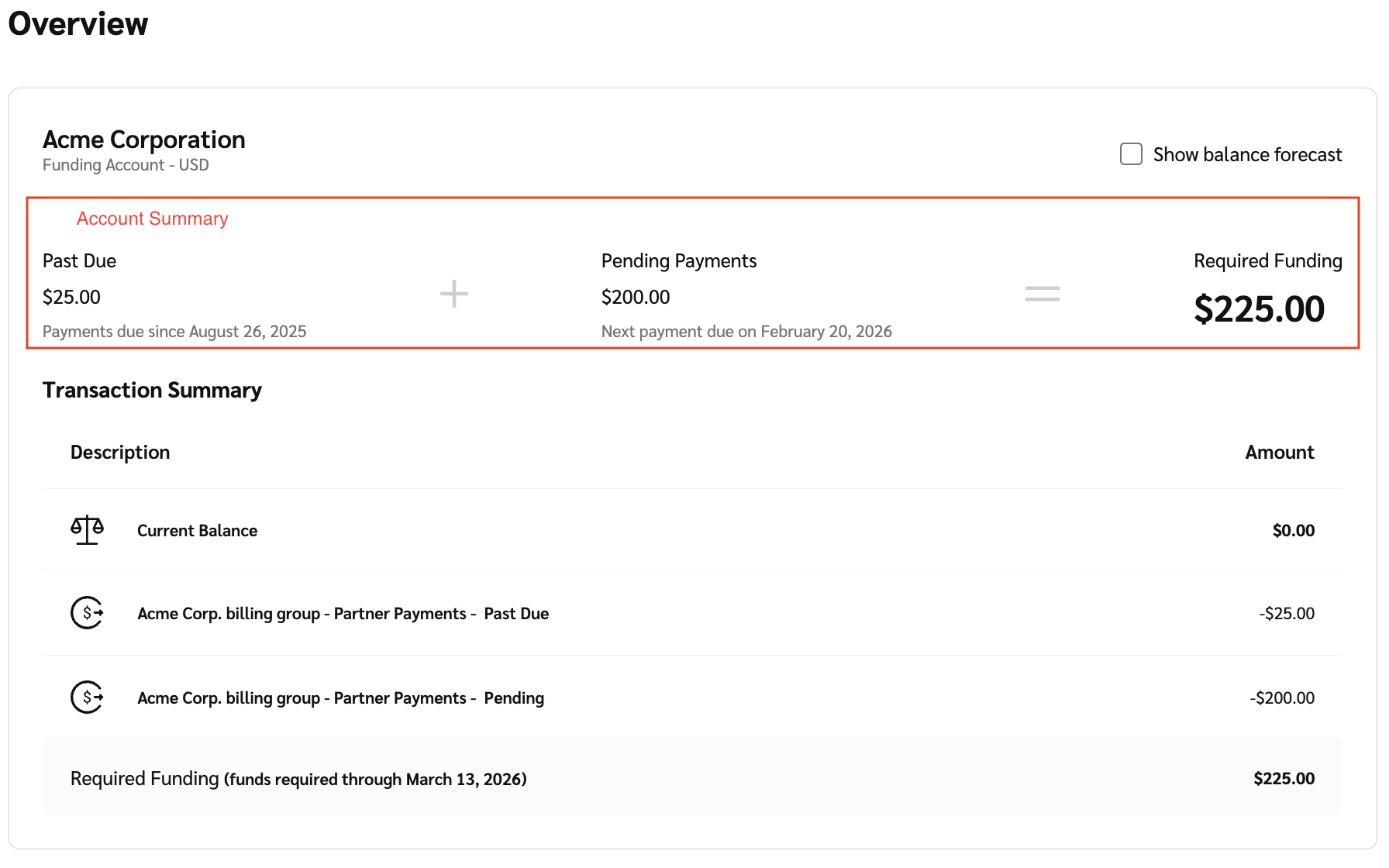
On the Overview screen, view your required funding and transaction summary.
The Finance Overview screen shows your funding account(s) with a breakdown of:
Account summary: The breakdown of the total funding required for your account. The required funding is broken down into past due, pending payments and required funding. Refer to the Account summary reference and the Required funding scenarios below for more information.
Field
Description
Past Due
Shows the total amount of payments that have not been made by their due date.
Pending Payments
Shows the payments that are scheduled but not yet due. This includes upcoming fees or partner payments with a future due date.
Required Funding
The total amount of money that is added to your funding account to cover both past due and pending payments.
Scenario
Description
You have overdue payments
In the instance where you have overdue payments, the balance will reflect how much you need to fund and by when.
Your payments are up to date
In the instance where your payments are up to date, both your current balance and the minimum deposit amount by the required date will show up.
Transaction Summary: The balance of your funding account and the amounts you'll need to pay to stay appropriately funded given current transactions in the system through a 45-day window. Refer to the Transaction summary reference below for more information.
Description
Description
Current Balance
Your current funding account balance.
Pending Deposit
The total of any pending Automated Clearing House (ACH) payments that have not yet cleared.
impact.com fees - Past Due
The total of outstanding impact.com fees.
Select impact.com Fees to view a drill down of the invoice details with an Overdue status.
Partner payments - Past Due
Partner payments, including locked contract costs and processed Partner Funds Transfers that reached their scheduled clearing date but could not be settled due to insufficient funds in your funding account.
Select Partner Payments to view a drill down of the Overdue Partners Payments invoice details.
Pending impact.com fees
The total of upcoming impact.com fees.
Select impact.com Fees to view a drill down of the invoice details with a Not Due status.
Pending Partner Payments
The total upcoming partner payments. These payments include costs set to clear within the next 45 days, whether they're locked or not.
Select Partner Payments to view a drill down of the Upcoming Partner Payments invoice details.
Required Funding
The total funds needed to cover all your pending and overdue payments.
Subscription: This is displayed as a separate widget and shows your subscription details and any add-ons included in your account.
Optionally, select
![[Unchecked box]](https://paligoapp-cdn-eu1.s3.eu-west-1.amazonaws.com/impact/attachments/f01cdffa431a4d75ff09c130b66974d4-396370c2cdec89ba7d714c4c58e6845b.svg) [Unchecked box] Show balance forecast to view your balance forecast. Hover your cursor over the graph to view the specific date.
[Unchecked box] Show balance forecast to view your balance forecast. Hover your cursor over the graph to view the specific date.Your balance forecast is a 45-day time series graph, starting from the current day and extending 45 days into the future. This graph provides a visual indication of when your funding account may run out of funds based on your current balance and upcoming transactions.
