

You can create surveys for new partners during sign-up or joined partners. Once you've created surveys, you can then view, filter, edit, and delete them as needed.
Note: Surveys cannot be edited once they have recorded responses.
From the left navigation menu, select
![[Engage] v2](https://paligoapp-cdn-eu1.s3.eu-west-1.amazonaws.com/impact/attachments/f01cdffa431a4d75ff09c130b66974d4-aa671735ec2b65af79961eaf59ab60af.svg) [Engage] → Partners → Surveys.
[Engage] → Partners → Surveys.Search for or filter your creators using the filtering tools below Surveys.
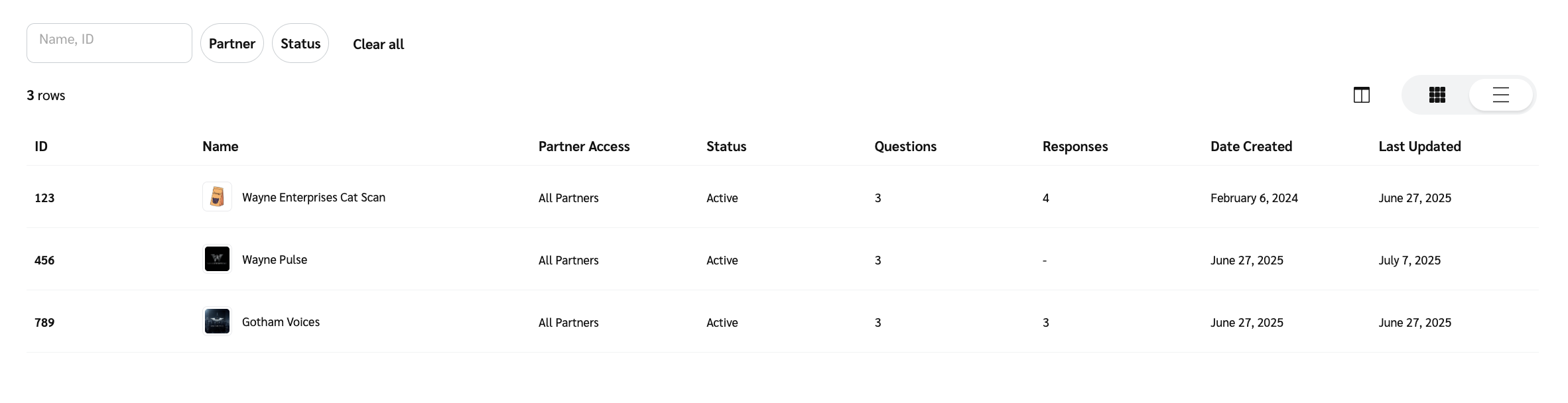
From the Surveys screen, hover over a survey for which you want to see the responses, then select View Responses.
The view response option will only appear if the survey has recorded responses.
View the responses as well as other partner details for each question.
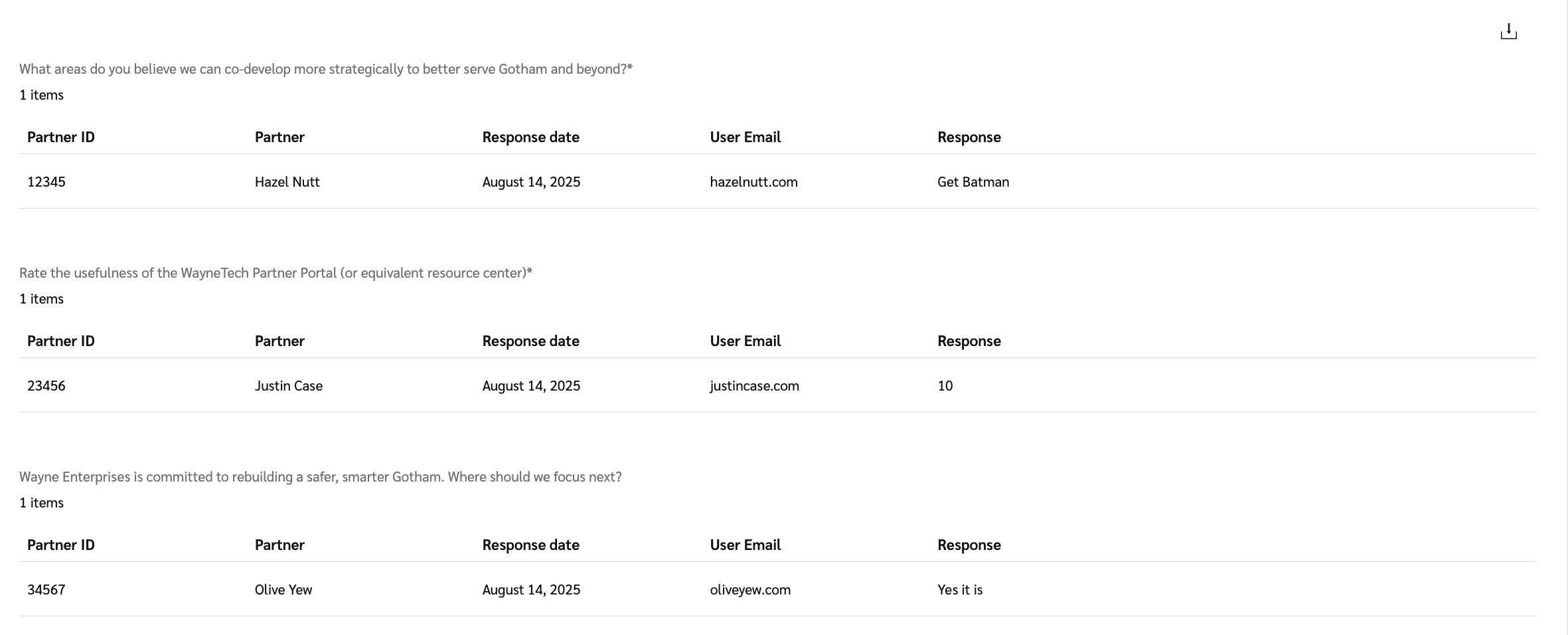
Field
Description
Partner ID
The partner's unique identification number.
Partner
The partner's name.
Response date
The date on which the partner responded.
User Email
The partner account user's email address.
Response
The partner's response to the question.
To download your survey's responses as a .csv file, select
![[Download]](https://paligoapp-cdn-eu1.s3.eu-west-1.amazonaws.com/impact/attachments/f01cdffa431a4d75ff09c130b66974d4-f76fdae41f0098f68cc10cdbbffa6e08.svg) [Download] in the upper-right corner.
[Download] in the upper-right corner.
Note: You can only edit a survey if it has not yet recorded any responses. Once a response has been received, the survey can no longer be modified to ensure the integrity of the collected data.
From the Surveys screen, hover over a survey you want to edit, then select
![[More] vNext](https://paligoapp-cdn-eu1.s3.eu-west-1.amazonaws.com/impact/attachments/f01cdffa431a4d75ff09c130b66974d4-73f43076a692f2dcc8960037fabdca9c.svg) [More] → Edit.
[More] → Edit.If the survey has no responses, select Edit.
Edit the fields that you want to change.
Select
![[Edit]](https://paligoapp-cdn-eu1.s3.eu-west-1.amazonaws.com/impact/attachments/f01cdffa431a4d75ff09c130b66974d4-e61063d693316495c46ce944a80f6e34.svg) [Edit] to edit or
[Edit] to edit or ![[Hamburg menu]](https://paligoapp-cdn-eu1.s3.eu-west-1.amazonaws.com/impact/attachments/f01cdffa431a4d75ff09c130b66974d4-ccad3105b14cfd089a0d7603c57d0595.svg) [Move] to rearrange the questions.
[Move] to rearrange the questions.
Select Save.
From the Surveys screen, hover over a survey you want to delete, then select
[More] → Delete.If the survey has no responses, select Delete.
Read the warning message and select OK.