Connectors are a system for all batch data file transfers between impact.com and brands, partners, or other parties. Each connection (an individual connector) has certain attributes, such as the data type (clicks, conversions, product catalogs, etc.), direction (inbound or outbound), method (SFTP, FTP, Email), and more.
The Connector Wizard allows you to set up connections to other platforms so that impact.com can automatically batch process the data to deliver enriched data to your systems.
From the top navigation bar, select
![[User]](https://paligoapp-cdn-eu1.s3.eu-west-1.amazonaws.com/impact/attachments/f01cdffa431a4d75ff09c130b66974d4-ec4c7b9aa5792fe725406b280fb272b1.svg) [User profile] → Settings.
[User profile] → Settings. In the left column, under Technical, select Connections.
Select Create Connection in the top right to access the Connector wizard.
You can't delete a connection once it's been created.
Term
Description
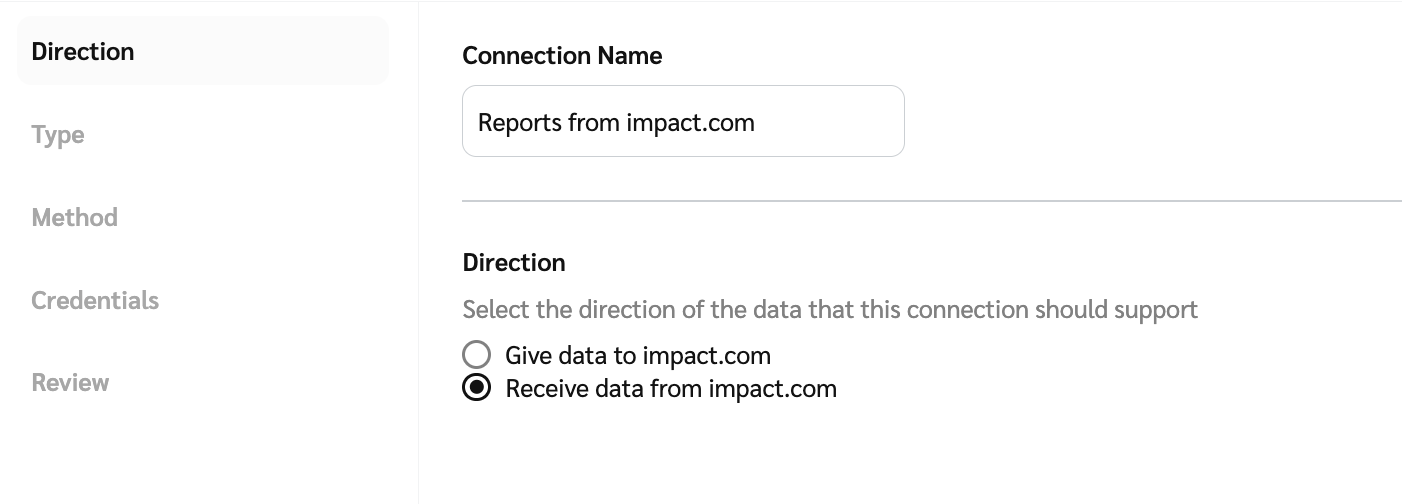
Connection Name
Provide a name that describes the connection. (E.g., Download Aggregate Performance Data.).
Direction
The direction of the data that this connection supports: Inbound is data coming into impact.com, Outbound is data going out of impact.com to another platform.
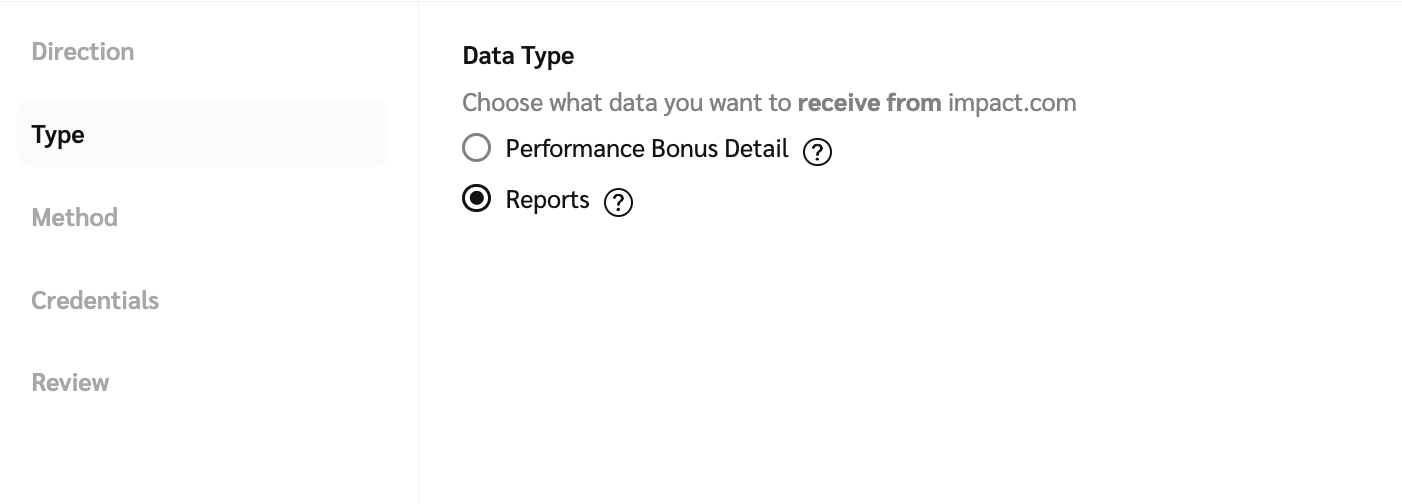
Data Type
The type of data this connection processes (E.g., conversion data, action modifications, etc.).
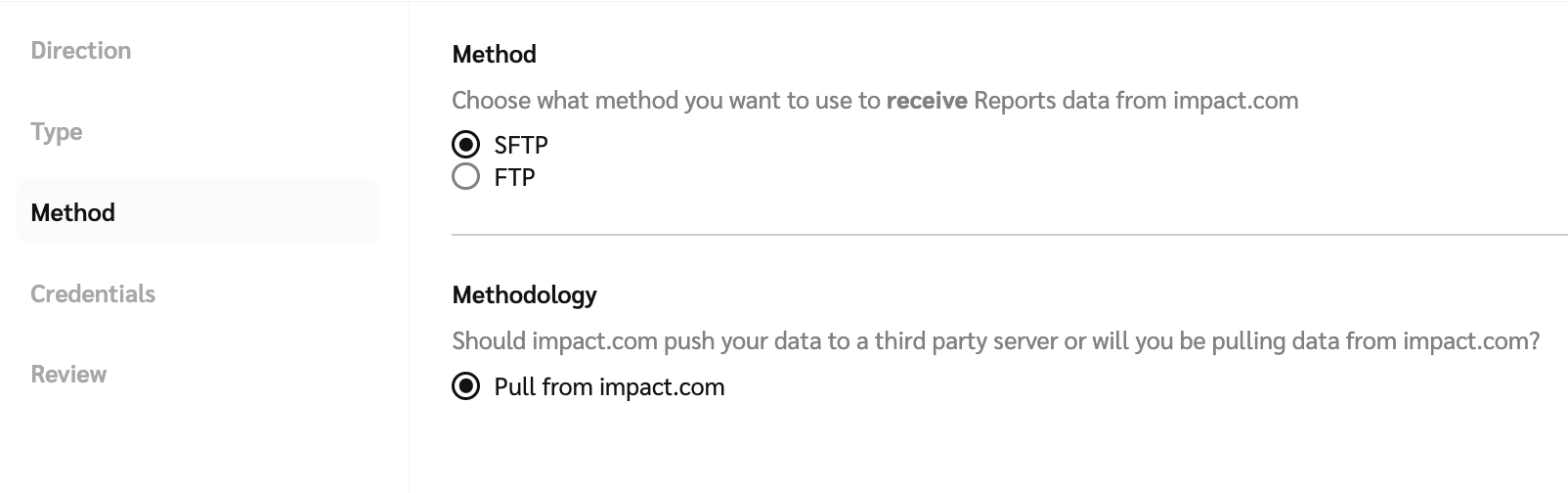
Method
The transfer method this connection uses, (E.g., FTP, SFTP, or Email.).
Methodology
The transfer methodology. Inbound connections support “Push to Impact” and “Pull from 3rd Party”. Outbound connections support “Pull from Impact”.
Connection Details
The connection details that will be required is dependant on a combination of the chosen Direction, Method and Methodology.
In some cases the you will need to provide details and in other cases impact.com will provide the details.
![[Radio button]](https://paligoapp-cdn-eu1.s3.eu-west-1.amazonaws.com/impact/attachments/f01cdffa431a4d75ff09c130b66974d4-b7d91d1c012267bd96951fe6c2b643a4.svg)
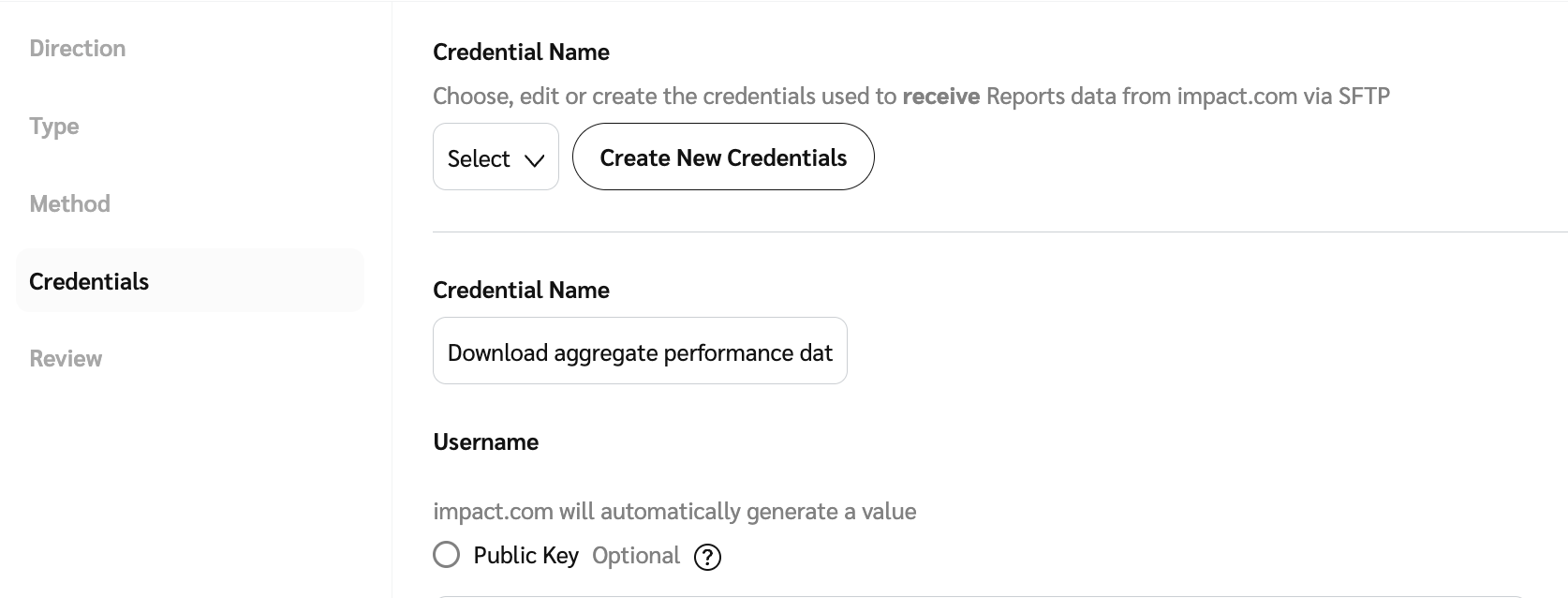
Either select existing credentials from the dropdown, Edit Existing Credentials or Create New Credentials.
If you're creating new credentials, enter a name for the credentials that describes its use case. E.g., Download aggregate performance data, then select either Public Key → Create or Password → Create.
If you choose Password, the values will be populated for you. Be sure to Copy these values.
Select Next to continue.